New for Self-Hosted Nostos: Link the Books You Already Have
If you run Nostos yourself, it can now read audiobooks and ebooks straight from a folder on your server instead of making you upload a second copy. Here's how to set it up.
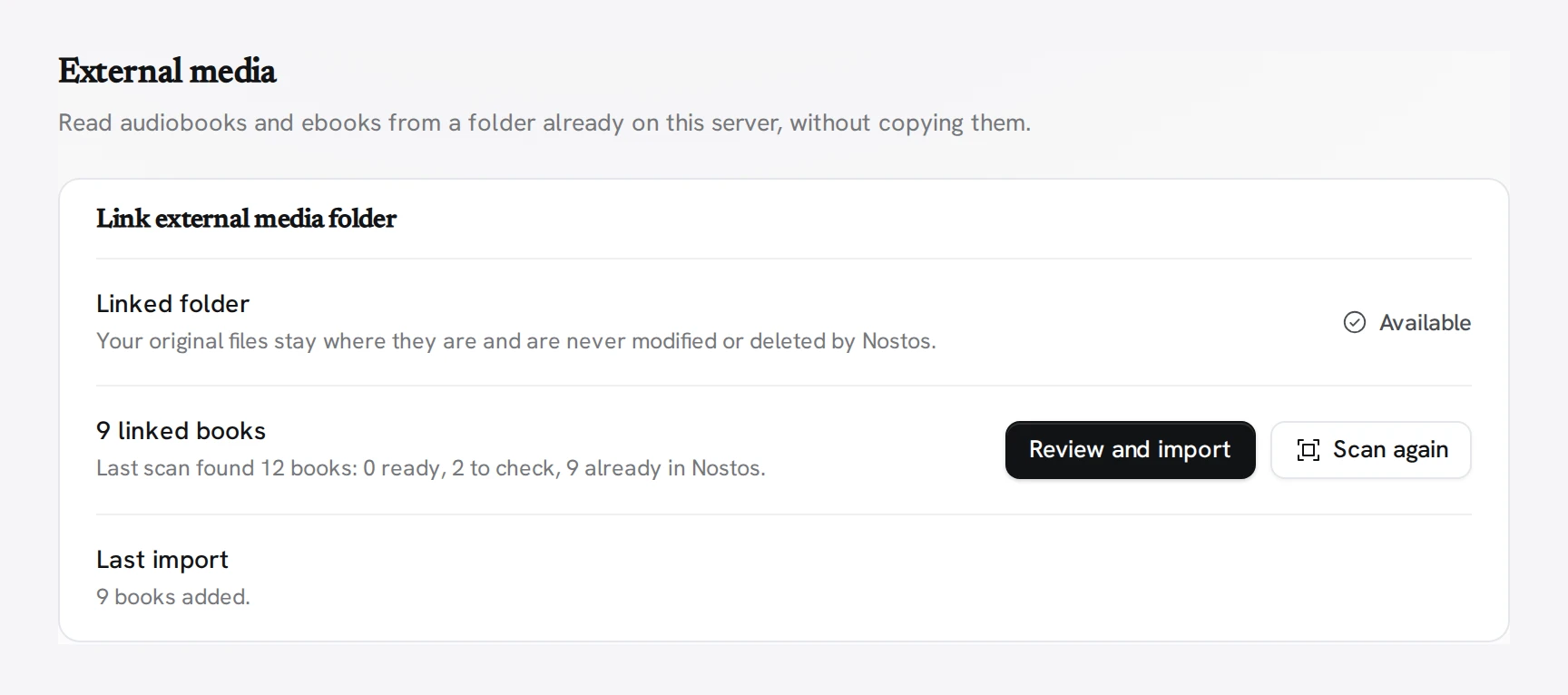
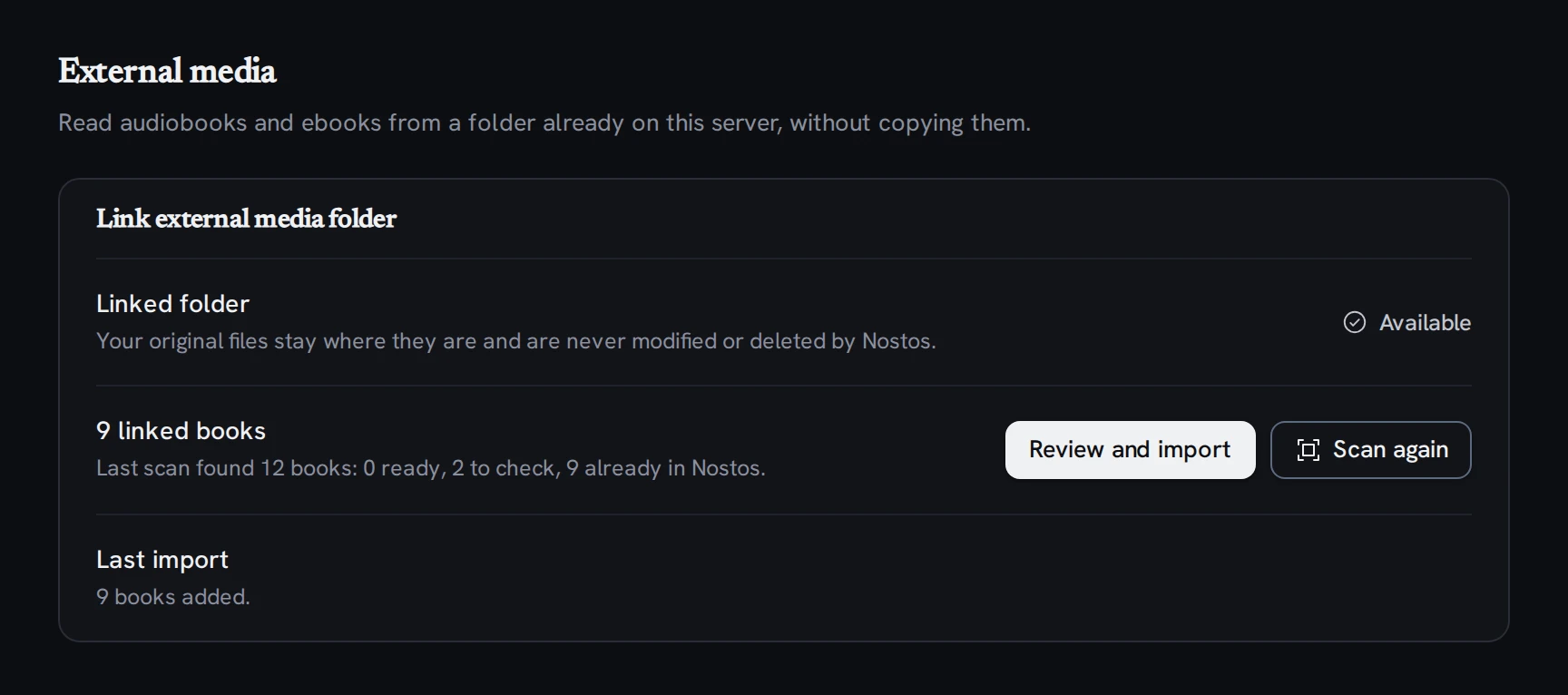
New · Self-hosted only
This is a new feature, and it’s for self-hosted Nostos only. If you use the hosted version, there’s nothing here for you. Sorry.
If you run Nostos yourself and you already have a folder full of audiobooks or ebooks on that machine, Nostos can now read them from where they are. You don’t upload anything and nothing gets copied.
Why I built it
Someone wanted to try Nostos and couldn’t. They had about 100 GB of audiobooks in a folder already, and the only way in was to upload every file, which would have left them with a second copy of the whole thing. That was a deal-breaker for them, and fair enough.
Adding a “link this file” button on each book wouldn’t have helped either. Nobody is going to do that a few hundred times. It had to be: point Nostos at the folder once, look at what it found, import it, done.
The one promise
Your original files stay where they are and are never modified or deleted by Nostos.
I mean that literally. Nostos only ever opens those files to read them. If you mount the folder read-only, which is what I’d do, your operating system wouldn’t let Nostos change anything even if it tried.
If you remove a linked book from Nostos, you lose the notes and reading progress you had on it in Nostos. The file on your disk is not touched, and the dialog says so before you confirm.
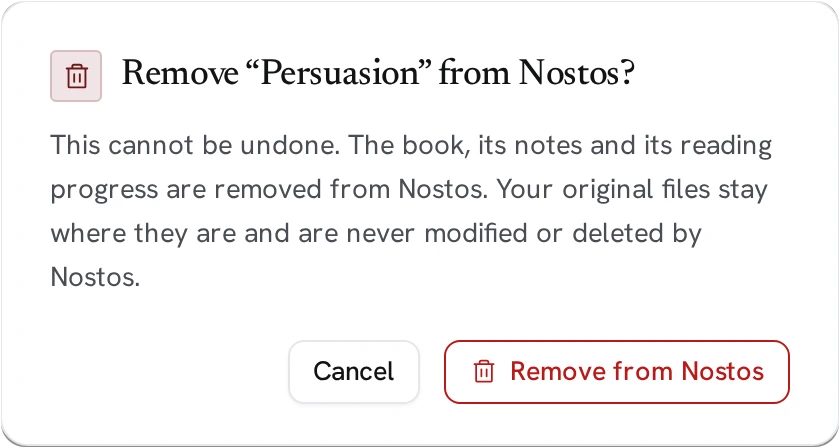
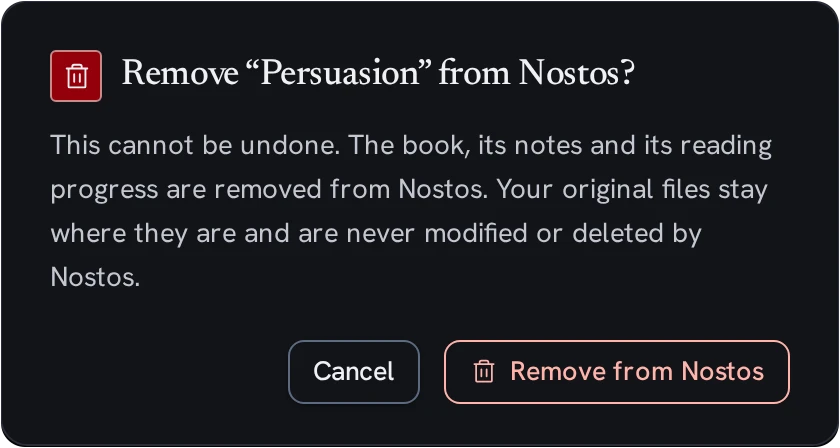
What Nostos does keep for itself is small: your notes, your progress, a cover image, and a search index for ebooks.
Setting it up with Docker
It’s one line and two commands.
-
Add your folder to
compose.yml, undervolumes:services: nostos: image: ghcr.io/christian-gennari/nostos:latest ports: - "5099:8080" volumes: - nostos-data:/data - /mnt/audiobooks:/external/media:ro restart: unless-stopped volumes: nostos-data:Change
/mnt/audiobooksto wherever your books are. Leave/external/mediaexactly as it is, because that’s where Nostos looks. The:roat the end is the read-only part.Nostos reads one folder. If your audiobooks and ebooks live in two places, mount both underneath it, like
/external/media/audiobooksand/external/media/ebooks. -
Make sure the files can be read:
chmod -R o+rX /mnt/audiobooksNostos runs inside the container as an ordinary user, not as root, and that user needs to be allowed to read your files. This changes permissions and nothing else.
-
Get the new image and start it:
docker compose pull
docker compose up -d
The
pullmatters. An older image doesn’t have this feature.
If you don’t use Docker, set ExternalMedia__Root to the full path of the folder and restart Nostos.
Scan, look, import
Open Settings → This server → External media. If it says Available, press Scan folder.
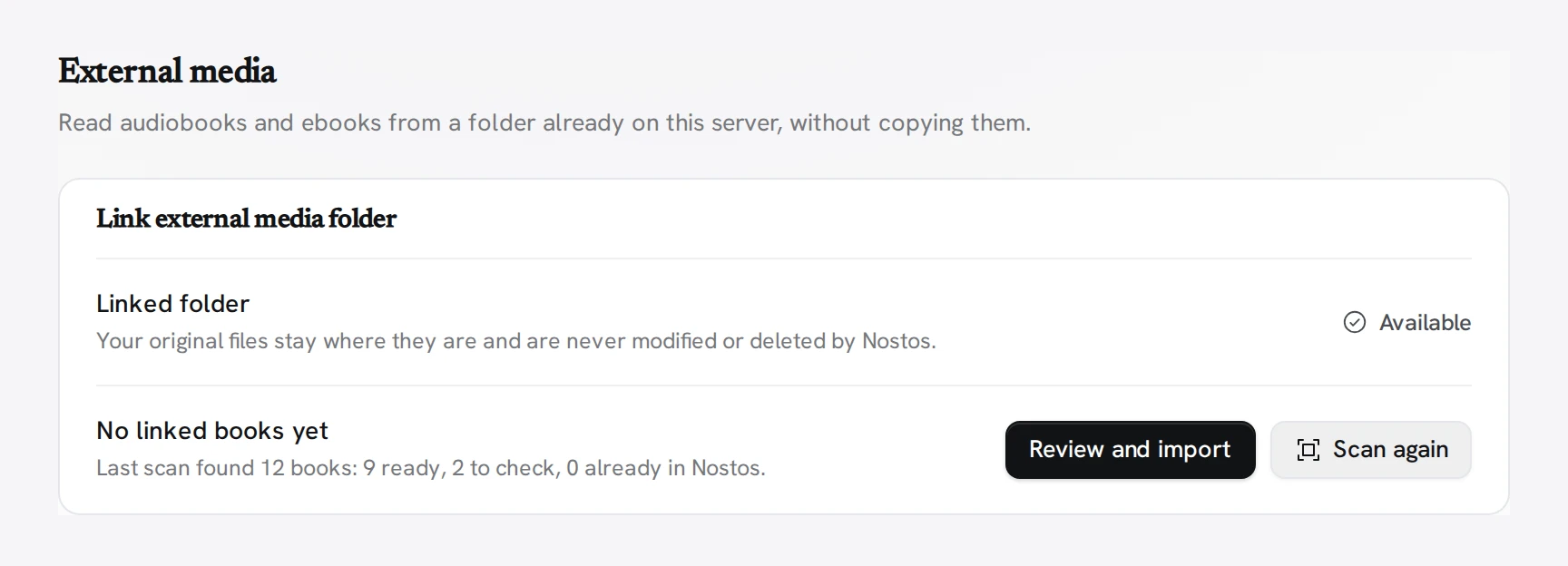
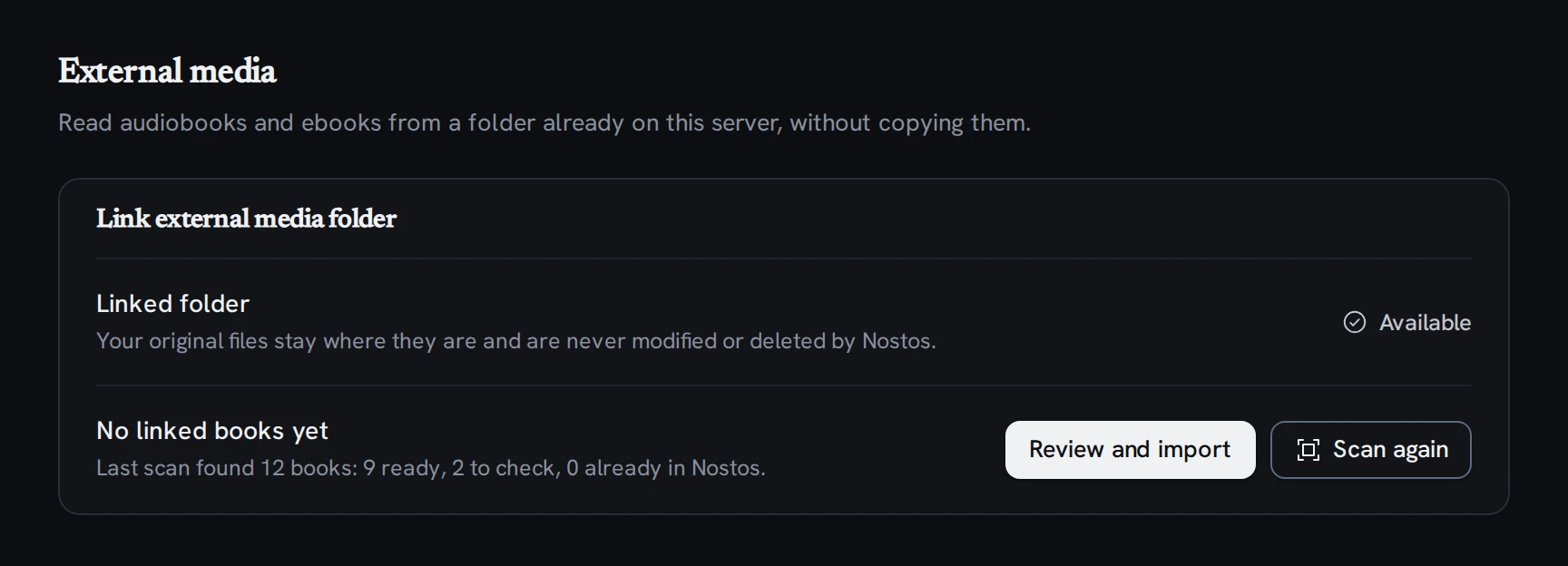
Nothing is added at this point. Nostos lists the folder, reads the tags inside the files, and then shows you what it found.
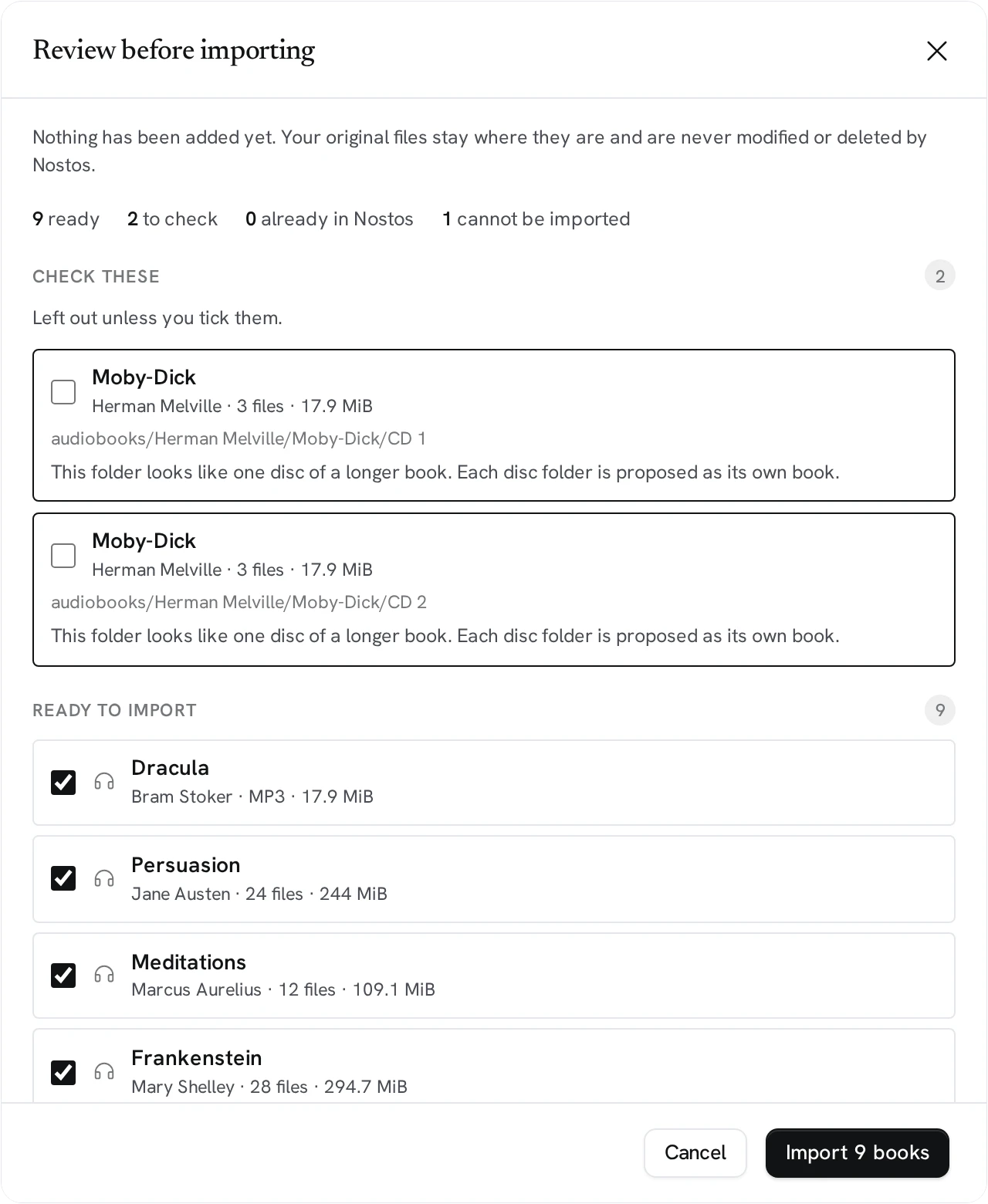
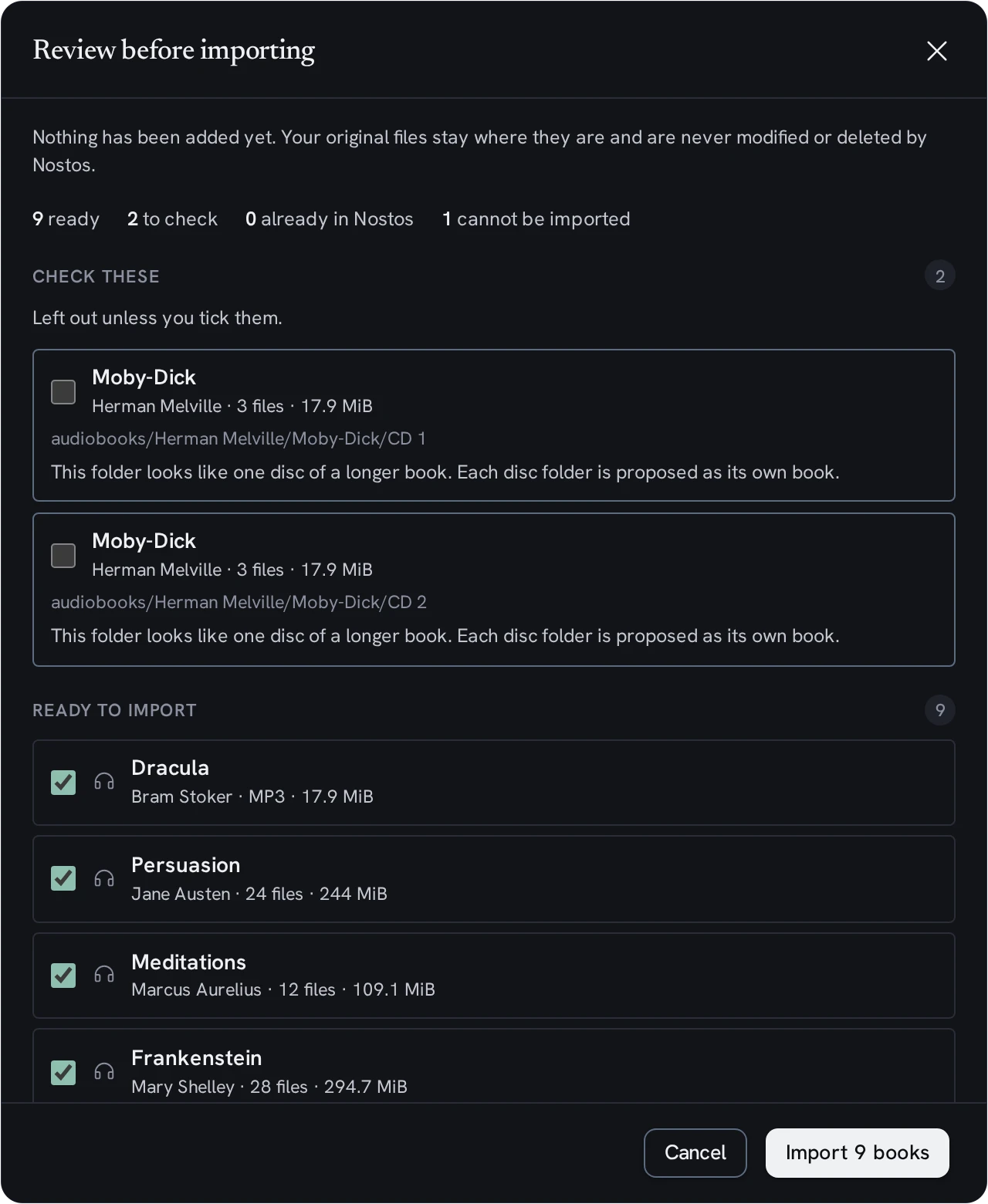
- Ready to import: these are ticked. Untick anything you don’t want.
- Check these: Nostos isn’t sure, so they’re left out unless you tick them. A common reason is that a book with the same title is already in your library. If you import it anyway it becomes a separate book. Nostos never merges two books on its own.
- Cannot be imported: a damaged file, usually. It tells you why.
Press Import and it runs on the server. You can close the window, or the whole tab, and it keeps going. Come back to Settings later and it’ll show you where it got to.
It doesn’t copy or convert anything. For an audiobook made of many files it reads each file once to measure it, so a big library takes a while, and that’s all it does. Linked books then stream from your server like every other book, so there’s no offline listening for them.
Nostos doesn’t watch the folder, so when you add more books to it, press Scan again.
How it reads your folder
| In the folder | What you get |
|---|---|
| An EPUB or PDF file | One ebook |
| An M4B file | One audiobook |
| A folder with several MP3 or M4A files | One audiobook, with the files as its tracks |
The tracks play in file name order, and numbers are read as numbers, so 2 - Intro comes before 10 - End. The title and author come from the tags in the files. If there aren’t any, Nostos uses the file or folder name. Covers come from cover.jpg in the folder or from the artwork inside an audio file. EPUB and PDF covers aren’t picked up yet.
Two things it doesn’t handle yet. A book split into CD 1 and CD 2 folders is offered as two books, under Check these, which is what happened to Moby-Dick in the picture above. And FLAC, OGG and MOBI files are counted on the review screen and left alone.
Something like this works well:
audiobooks/
  Ursula K. Le Guin/
    A Wizard of Earthsea/
      01 - Warriors in the Mist.mp3
      02 - The Shadow.mp3
      cover.jpg
  Bram Stoker/
    Dracula.m4b
If a file goes missing
If you move or delete a file, or the folder isn’t mounted one day, the book stays in your library with all its notes. Its page says External file unavailable. Put the file back in the same place and it works again. The same place matters: rename a file and Nostos sees a new book, and the old entry stays behind as unavailable, with its notes, until you remove it.
Nostos will never delete a book because its file disappeared. I didn’t want a loose cable to cost anyone their notes.
Backups
This is the part to read twice.
| What it holds for a linked book | |
|---|---|
| A normal backup | The book, your notes, your progress, and where the file is. Not the file. |
A full export (.nostos) |
Everything, including the audio and ebook files themselves. |
So if you restore a backup, your linked books come back, and they play once the same folder is mounted again. Your audiobook folder still needs its own backup, same as it did before.
The export is the one you’d use to move to another server or to the hosted version. It has to include the files, because the place you’re moving to can’t see your folder. If you’ve linked 100 GB of audiobooks, expect a 100 GB export.
If it doesn’t show up
| What you see | What to do |
|---|---|
| Not set up yet | Nothing is mounted where Nostos looks. Check that your volume line ends in :/external/media:ro, and that you ran docker compose up -d and didn’t just restart the container. |
| The scan finds 0 books | It’s almost always permissions. Run the chmod line above. Nostos tells you when there were folders it wasn’t allowed to read. |
| No External media page in Settings at all | Your image is from before this feature. Run docker compose pull, then docker compose up -d. |
The full guide has the rest, including docker run and a longer list of things to check.
As of 13 October 2026: this is in the
latestself-hosted image. It links M4B, M4A, MP3, EPUB and PDF files from one folder.